
What Laptop System Requirements for The Sims 4 Tell Us about a Controlled Workspace?
You may be an avid fan of certain games like The Sims 4. If you want to play this, like on a computer, then it is important that you know what are the system requirements for The Sims 4 on a laptop.
A laptop is about more than meeting the minimum system requirements. While a computer that satisfies the game’s specifications can launch and run the game, long-term performance depends on maintaining a safe, organized, and well-controlled workspace. It is important to provide proper care on your hardware. Ensure that it has effective ventilation, and also, undergoes regular software maintenance. By doing so, it will contribute to a smoother game play. Not only that, it can help in prolonging the life of your laptop.
Interestingly, the same principles that help a laptop run The Sims 4 efficiently also apply to productive work environments. Whether you’re attending online classes, working remotely, creating digital content, or relaxing with a favorite game, maintaining your workstation can improve both performance and reliability.
Understanding Why System Requirements Matter
Every game has recommended hardware specifications because developers design their software around certain performance expectations. For The Sims 4, important components include the processor, memory (RAM), storage, graphics capabilities, and operating system compatibility. Each component plays a different role:
- Processor (CPU): Handles game logic, character behavior, and background calculations.
- Memory (RAM): Stores active game data, allowing faster access to information.
- Graphics Processing Unit (GPU): Renders environments, animations, lighting, and visual effects.
- Storage: SSDs provide significantly faster loading times than traditional hard drives.
- Operating System: Ensures compatibility with the game and security updates.
Meeting these requirements helps prevent crashes, excessive loading times, and unstable performance.
Keeping Your Laptop Cool for Better Performance
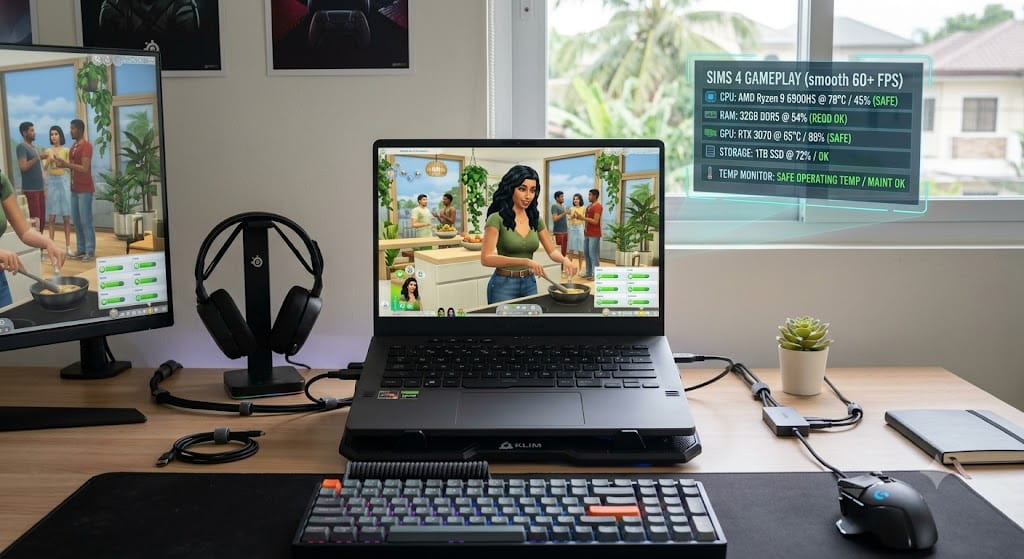
During long gaming sessions, both the CPU and GPU generate considerable heat. If temperatures become too high, the system may reduce processing speeds through a process known as thermal throttling to protect internal components. Fortunately, maintaining proper airflow is relatively simple and some helpful practices you can do include:
- Keeping ventilation openings free of dust
- Cleaning cooling vents regularly
- Avoiding blankets or cushions that block airflow
- Using a cooling pad during extended gaming sessions
Good ventilation benefits more than gaming. A cooler laptop generally performs more consistently during demanding tasks such as video editing, programming, graphic design, and virtual meetings.
By reducing heat buildup, users can help preserve battery health and improve the longevity of internal hardware.
Software Maintenance Supports both Gaming and Productivity
Hardware performs best when supported by a well-maintained software environment. Over time, unnecessary startup programs, outdated drivers, and accumulated temporary files can reduce overall system responsiveness. Routine software maintenance helps keep a laptop running efficiently and some of the most useful maintenance habits you should do are:
- Installing operating system updates
- Updating graphics drivers
- Removing unused applications
- Scanning for malware
- Keeping sufficient free storage space
- Backing up important files regularly
Graphics driver updates are particularly valuable because they often include performance improvements and compatibility fixes for newer games and applications.
Likewise, maintaining adequate free storage space allows both Windows and applications to function more efficiently, reducing slowdowns during gameplay and everyday work.
Building a Safe and Organized Workspace
Running The Sims 4 comfortably involves more than the laptop itself.
The surrounding workspace can influence both system performance and user well-being. An organized workstation reduces distractions while helping protect valuable equipment.
Perhaps, it’ll be wise to consider these best practices:
- Keep drinks away from electronic devices.
- Organize cables to prevent accidental damage.
- Position the laptop where air can circulate freely.
- Maintain good lighting to reduce eye strain.
- Use an ergonomic chair and desk when gaming or working for long periods.
A clean workspace also minimizes dust accumulation, which helps prevent cooling systems from becoming clogged over time.
These habits support productivity just as much as they support entertainment. Whether completing school assignments, attending remote meetings, or enjoying a gaming session, a well-organized environment encourages better focus and comfort.
Balancing Performance, Safety, and Long-Term Reliability
Many users focus exclusively on upgrading hardware when trying to improve gaming performance. While additional RAM or faster storage can certainly help, proper maintenance often delivers noticeable improvements without requiring expensive upgrades.
For The Sims 4 players, this means smoother gameplay, more stable frame rates, and fewer interruptions. For students and professionals, it translates into faster application performance, improved multitasking, and a more dependable workstation.
A controlled workspace also encourages healthier computing habits. Proper posture, reduced clutter, and better ventilation contribute to a more enjoyable experience whether the laptop is being used for work or recreation.
A Well-Maintained Workspace is the Best Performance Upgrade
Meeting the system requirements for The Sims 4 is only the first step toward a reliable gaming experience. True performance comes from combining suitable hardware with thoughtful maintenance, good organization, and safe computing practices. A laptop that is kept cool, updated regularly, and used in a clean, well-ventilated workspace is better equipped to deliver consistent performance for gaming, studying, and everyday tasks.